
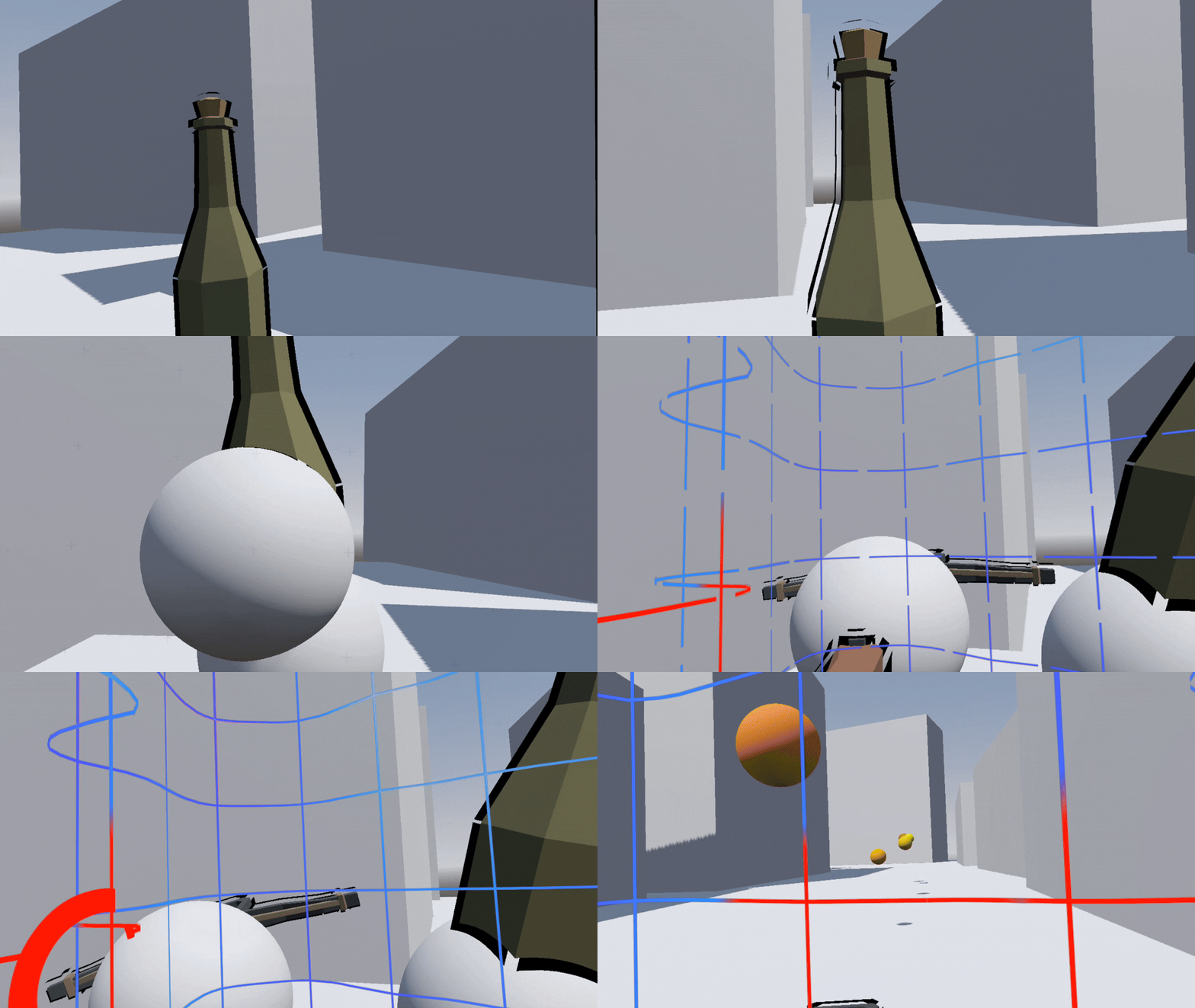
VR Grab Mechanics
Interacting with objects is a core part of any game—but in VR, it’s absolutely crucial to immersion. If you’re building a workshop in a traditional flat-screen (or, as I like to call it, pancake) game, picking up a wrench usually just means it disappears into your inventory. In VR, though, players expect more. They want to hold the wrench, fiddle with loose nuts and bolts, open drawers, grab a drill, and generally interact with the world in ways that go beyond what a pancake game typically offers.
This is something I’ve been keeping front and center while working on my own VR project, Project Alchemy War. With that in mind, I decided to start at the foundation of VR interaction by building one of the most essential mechanics: grabbing.
At first glance, grabbing seems simple enough—but in practice, it can get surprisingly tricky. In my own implementation, I ran into issues like objects shifting slightly in physical space without actually attaching to the hand, or even crashes caused by improper attachment logic. Catching these problems early—and understanding what works and what doesn’t—is incredibly important. So in this post, I’ll walk through the code I’ve developed, explain how I’m using it in my game, and share the reasoning behind some of the design decisions along the way. Hopefully, it’ll help spark a few ideas of your own.
Setup
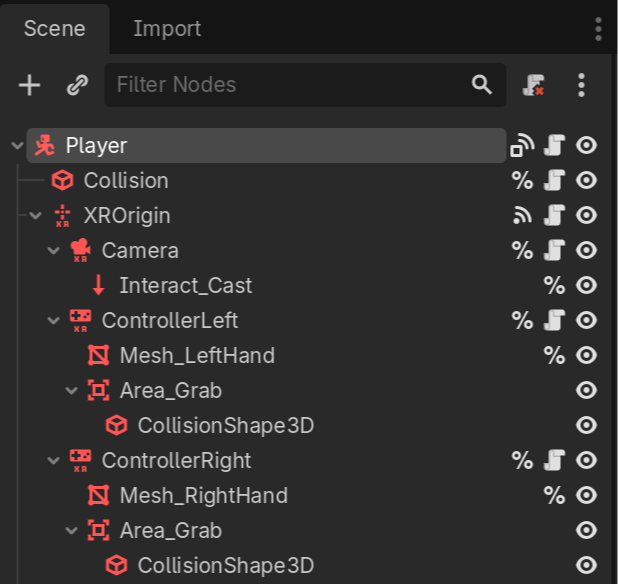
We first want to start with the setup, below is my configuration for my game, I want to start by saying that I am not following what Godot recommends for an XR Player Layout, this is not entirely relevant to what we are doing, but I wanted to point it out now, since someone likely will.
What I do want to draw your attention to is the ControllerLeft and ControllerRight, these are each XRController3D’s, one for each hand. In addition each has an Area3D and a CollisionShape3D. These are the necessary components for being able to grip objects in VR. While not necessary, I would also reommend a MeshInstance3D. Doing this will provide a visual to see where your hand is and make easier to identify if there are any issues with collisions.
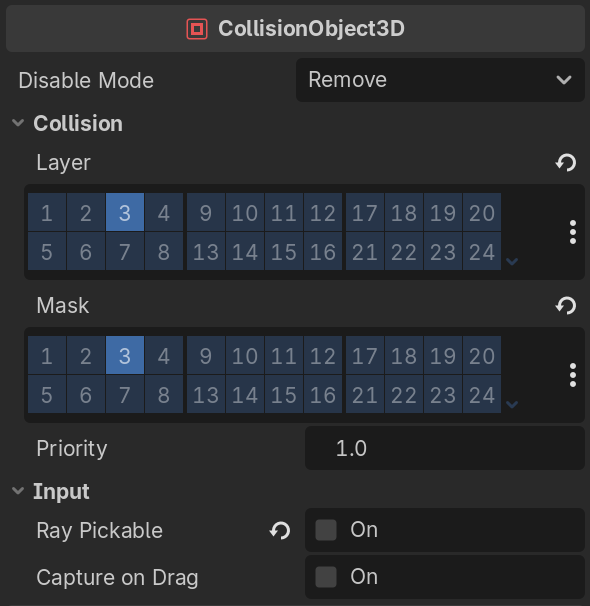
It is also important that we setup our Area3D to be configured correctly. In my game, I decided to give grabbable objects as a whole, their own collision layer. Using this we can be certain our Area3D, is only picking up grabbable objects. This also makes our code easier since we don’t have to filter through objects we want to ignore altogether.
We then want to make sure we have a script attached to each of the XRController3D’s. All of our code will be input into this script, and it can be reused between both controllers, as well as by our pancake player.
Code setup is pretty minimal as well, you will require two variables: gripped_obj and grab_collision, with additional connects for button_pressed and button_released. The connect for each can be handled in editor as well, but for convenience I decided to do this once in code rather than once for each hand in the editor. I also made the corresponding functions, we will be handling these throughout this guide.
extends XRController3D

var gripped_obj : Node3D
@export var grab_collision : Area3D

func _ready() -> void:
	# Setup Signal Connects
	button_pressed.connect(Callable(self, "on_button_press"))
	button_released.connect(Callable(self, "on_button_release"))

func on_button_press(_name: String) -> void:
	pass

func grip_object(object : Node3D):
	pass

func on_button_release(_name: String) -> void:
	pass

func release_object():
	pass
The OpenXR Action Map (Before the Inputs)
The OpenXR Action Map can look a bit complicated when you are first getting starting in handling XR Inputs, however, most of the presets that you get in the OpenXR Action Map handles a lot for you. It becomes easy to understand once you learn the way the OpenXR Actions are setup.
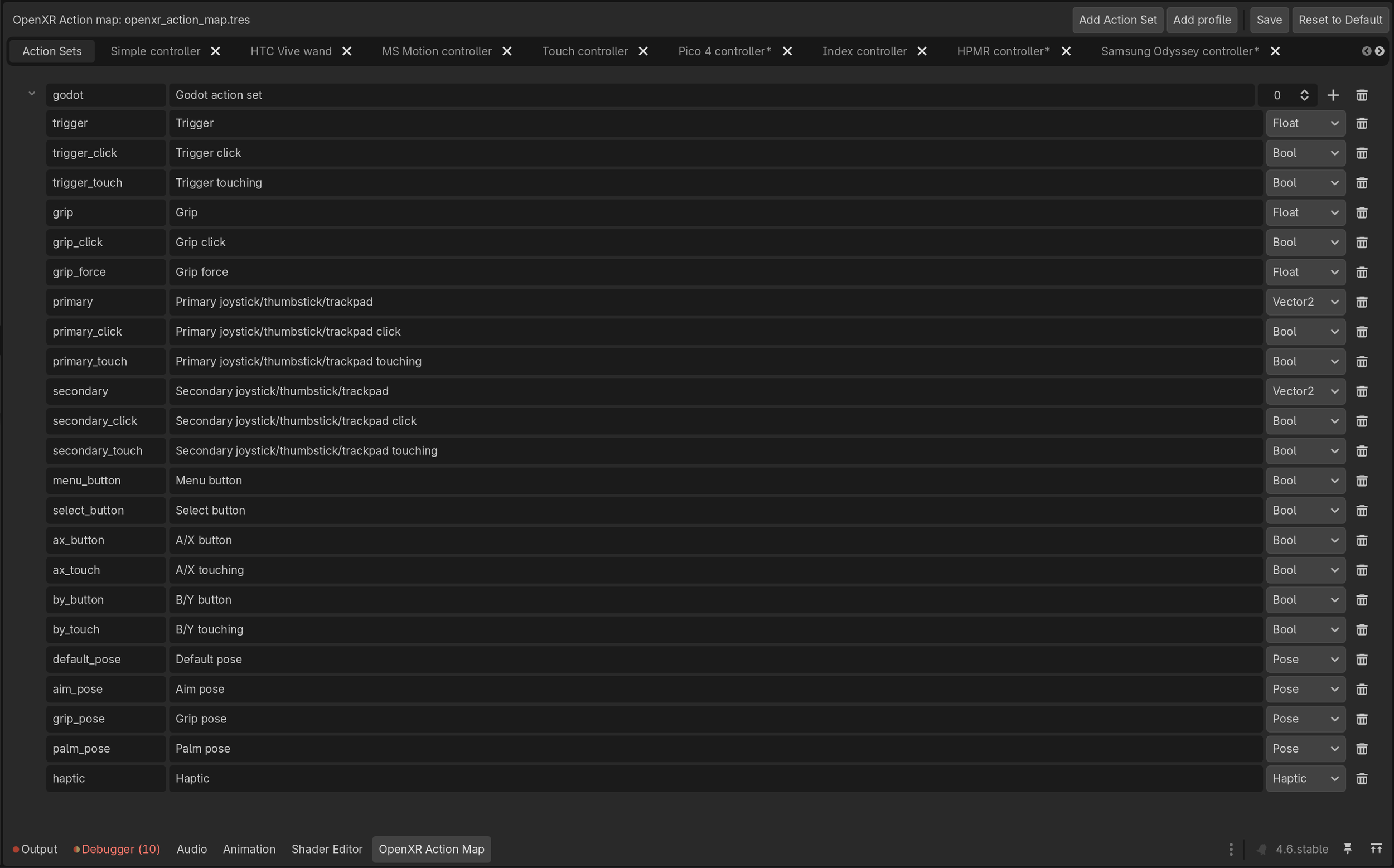
Along the bottom of the Godot Engine, you will find the tab for the OpenXR Action Map, the main page or Action Set page will give you most of the main information you need to know. On the left, you will see the name of each input, followed by a brief description of the input, and the input value on the right. Some of these inputs can be a bit misleading or unclear, so some experimentation may be required when you are trying to figure out how these inputs function. For grabbing, the input we will be using is grip_click. This input is passed as a button press and release which we can manage in code.
Grip Functionality
Now we get into the grip functionality, this is where much of the setup will be required as there is much more to do when compared to releasing or the setup. The grip functionality also sets up some of our release functionality as well, which help shorten that section of our code as well.
While the code below may seem confusing at first, once we break it down it makes sense. This function trigger’s whenever any button gets triggered, which goes according to our OpenXR Action Set. The input being passed through gets passed as our parameter _name. In this case, we are dealing with gripping so we want to make sure the input we get is grip_click. This is important because we get any input handled by our controller in this function, but we only want to continue when this input is pressed.
Assuming grip_click is the input we get, we then want to check for the nearest object to our hand, this helps in case there happens to be multiple grabbable object around the hand. There are other ways to manage this, or you could simply use the first grabbable object that we find, but I prefer to typically find whatever is closest since that is what I would anticipate the player is trying to grab.
We then pass this into a function we are calling grip_object(), this function will take over from here and handle the gripping of the object we find.
func on_button_press(_name: String) -> void:
	# Grip Button Input
	if _name == "grip_click":
		var nearest_object : Node3D = null

		# Check for nearest object
		for object in grab_collision.get_overlapping_bodies():

			# Ignore if revolver of held object
			if object.is_in_group("is_held"):
				continue

			# Set nearest_object
			if nearest_object == null:
				nearest_object = object
			elif nearest_object.global_position.distance_to(global_position) > object.global_position.distance_to(global_position):
				nearest_object = object

		# Grip if there is an object to grab
		if nearest_object:
			grip_object(nearest_object)
The nice thing about this grip_object() function, is I designed this section to also be usable by our pancake players. For this reason, I also found some errors that can occur in certain use cases, and attempted to design this function to be reusable throughout the game.
We start by checking to see if the object is held, there’s many ways to do this, but I decided to add and remove objects from the group is_held in order to determine if an object is in fact being held. We then do one more verification that an object has been passed just in case, and then we get into the main part of our code.
Checking if the object has a parent was something I came across while dealing with the pancake player. These players have the weapon spawned immediately, and originally would get passed straight through to this function. The problem, is if an object has reparent() called on it, and it does not have an existing parent, this causes a crash. However, for the VR Player, reparent() is necessary since it also needs to be detached from the scene. So I came up with this solution to call reparent() if the object has a parent, or simply add the object as a child of our XRController3D if it does not using add_child().
We then proceed to make some extra adjustments after the attachment, set_deferred(“freeze“, true) is used to disable physics while being held, we then make sure the object is positioned at the hand (I personally chose to ignore scale). We then add this object to the is_held group so its marked as being held, and store this object for later use in gripped_object.
func grip_object(object : Node3D):
	# Check if object is held
	if object.is_in_group("is_held"):
		return

	# Check if object is valid, possible in pancake
	if !object:
		print("No Object to grip")
		return

	# Check if a parent exists
	# If no parent: add_child, don't reparent
	if object.get_parent():
		object.reparent(self)
	else:
		add_child(object)

	# Freeze object physics
	object.set_deferred("freeze", true)

	# Set transform
	object.global_position = global_position
	object.global_rotation = global_rotation

	# Set object to is_held group
	object.add_to_group("is_held")

	# Store object for reference
	gripped_obj = object
Releasing the Object
As noted before, releasing is significantly easier to handle, requiring only two functions that are both pretty short since some of the setup was previously handled by the grip functions we created.
Like with the button grip function, we start our journey by first filtering to see if grip_click is the button being released. This functions in the exact same way as when we checked for buttons being pressed using the _name parameter. Here, if our button is released, we only need to call release_object().
func on_button_release(_name: String) -> void:
	# Grip Button Input
	if _name == "grip_click":
		release_object()
This function is similarly much easier than the grip function, and this is the function I similarly designed to be used by the pancake player.
We begin by first making sure we have a gripped object stored in gripped_obj, followed by undoing everything that gets done in the grip function. Re-enabling physics with set_deferred(“freeze”, false). Then reparenting the object to our scene, removing it from the is_held group, and finally removing our scripts reference to the now previously held object.
func release_object():
	# Check if object is held
	if !gripped_obj:
		return

	# Re-enable physics
	gripped_obj.set_deferred("freeze", false)

	# Reparent to scene
	gripped_obj.reparent(get_tree().current_scene)

	# Remove from is_held
	gripped_obj.remove_from_group("is_held")

	# Remove object reference
	gripped_obj = null